01 / The main unlock
The main unlock.
Find a favourite. Follow a musical line. Try a different sound. This is everything you need to feel at home with the Full release.
These lessons include the everyday controls shared with the free edition, as well as the extra pieces, instruments and high quality sound in the Full release.
Find something you’ll love.
Browse is a good place to wander. Start with a familiar composer, follow an instrument, or let a short collection make the choice easier.
Real app walkthrough
See the clicks, step by step.
English · tablet / computer · silent
Search for a piece or composer
Follow these steps
- Search by a title, composer or instrument.
- Choose the Polonaise from the search results.
- The chosen Polonaise opens in the player, ready to follow and shape.
Find it on your screen
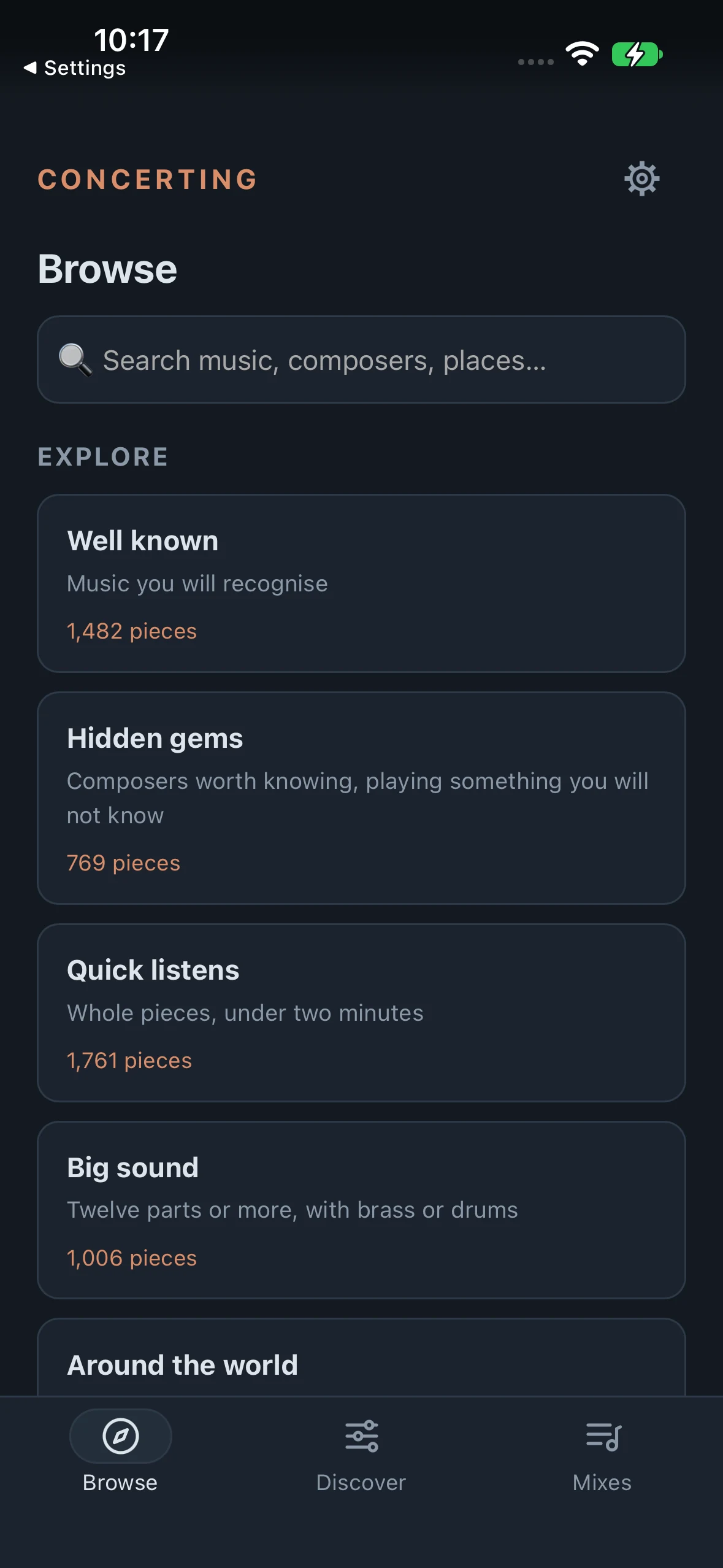
Your way into Browse
Select a control to highlight it.
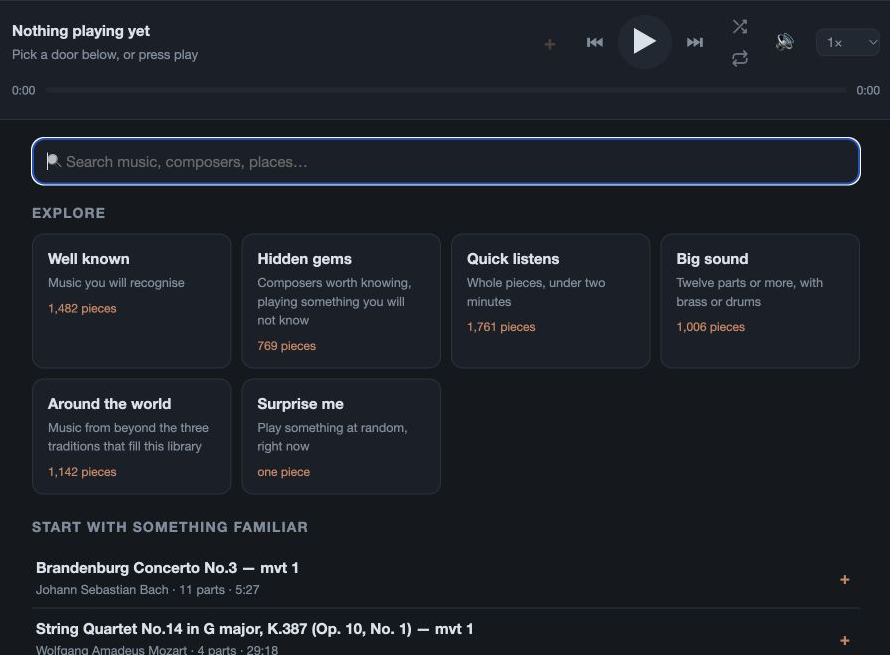
Actual app screen · English
Browse
What to look for
- On a phone
- Tap the compass marked Browse in the bottom navigation.
- On a tablet or computer
- Choose Browse in the top navigation.
Search
What to look for
- On a phone
- The large search field is just under the Browse heading.
- On a tablet or computer
- Look at the top of Browse, above the Explore collections.
Explore collections
What to look for
- On a phone
- Scroll through the large collection cards below Explore. Tap a card such as Well known.
- On a tablet or computer
- The Explore cards sit beneath the search field.
Settings
What to look for
- On a phone
- Close Now Playing if it is open. The cog is at the top right of the main app header.
- On a tablet or computer
- Use the cog at the right of the top navigation.
Search
Use “Search music, composers, places…” for titles, composers, eras, styles and origins. Every word you enter helps narrow the match; accents do not have to be exact.
Explore
Well known, Hidden gems, Quick listens, Big sound and Around the world offer different starting points. Quick listens contains complete pieces under two minutes.
Surprise me
Starts a piece straight away. Use it when you are happy to let Concerting choose.
Explore by sound
Choose Strings, Keyboard, Woodwind, Brass, Percussion, Plucked or World instruments. These describe the original scoring, before your changes.
Composers, eras & ensembles
Explore by composer or period, or choose Solo, Duet, Trio, Quartet, Small ensemble or Orchestra. A keyboardist’s grouped staves count as one player.
Every piece
View all pieces opens the full list. Show more reveals more rows; the playing sequence already includes all the matching pieces.
On a phone, the main tabs are along the bottom. On a tablet or computer, look along the top. Origin describes where the music comes from by composer.
Follow your curiosity further.
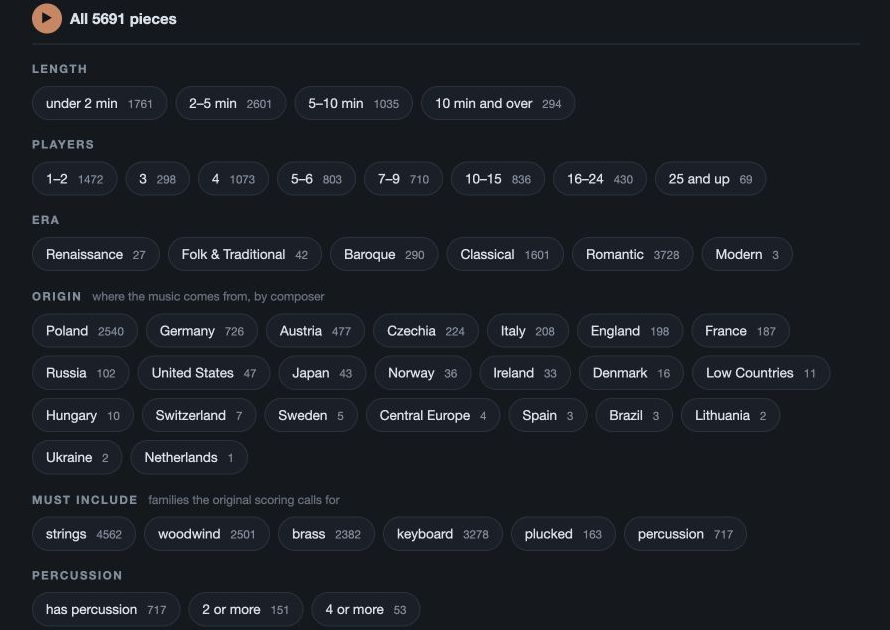
Discover lets you combine filters when you have something particular in mind. Counts update as you narrow the library, so you can see where your choices are leading.
Real app walkthrough
See the clicks, step by step.
English · tablet / computer · silent
Combine filters and clear your choices
Follow these steps
- Choose a length, such as under 2 minutes.
- The result count narrows. Add a player count.
- Selected filters work together. Use Clear all to start again.
- The full set of pieces is available again.
Find it on your screen
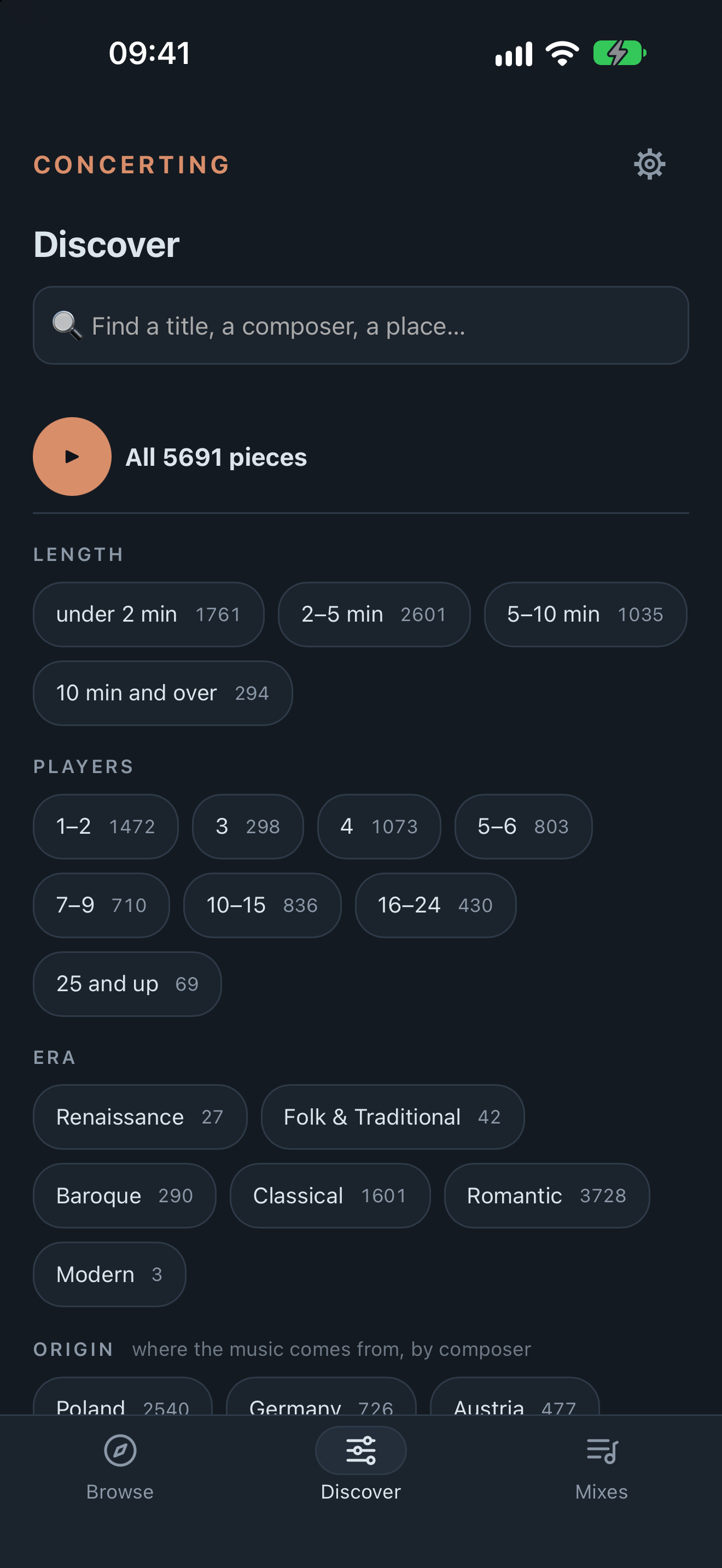
Recognise the search and filters
Select a control to highlight it.
Actual app screen · English
Discover
What to look for
- On a phone
- Tap the sliders symbol marked Discover along the bottom.
- On a tablet or computer
- Choose Discover in the top navigation.
Search
What to look for
- On a phone
- Use the field immediately beneath the Discover heading.
- On a tablet or computer
- The same search field begins the Discover page.
Play the results
What to look for
- On a phone
- The round Play button beside the result count starts the matching pieces.
- On a tablet or computer
- Look beneath the search field, above the filters.
Filter chips
What to look for
- On a phone
- Tap the rounded choices beneath headings such as Length and Players. Scroll for more groups.
- On a tablet or computer
- Use the same grouped chips beneath the result count.
Length & players
Choose under 2, 2–5, 5–10 or 10+ minutes. Player counts range from 1–2 through 25 and up.
Era, origin & composer
Pick represented periods or places, and search composer names. Several choices in most groups work as alternatives; choices across different groups work together.
Must include
Choose strings, woodwind, brass, keyboard, plucked or percussion. Every family selected here must be present.
Percussion
Look for pieces with percussion, two or more percussion parts, or four or more. This filter includes pitched and untuned percussion in the original scoring.
Original instruments
Select particular instruments and choose any of these or all of these. These filters always describe the original piece, not your custom arrangement.
Play or clear
Play all … of these starts the results. Remove a selected chip on its own, or use Clear all to reset the search and filters.
The current list helps determine what Next will play. Check “Next comes from …” in the player when moving between lists or changing filters.
Settle into the listening.
On a phone, tap the small player to open Now Playing. Close it with the down arrow or drag down from its top handle when you want to browse—the music carries on.
Real app walkthrough
See the clicks, step by step.
English · tablet / computer · silent

Play, pause and move between pieces
Follow these steps
- Press Play to continue the piece.
- Press Pause to stop at this position.
- Use Next to move to another piece in the collection.
- The title changes. Previous takes you back.
- You are back at the preceding piece.
Find it on your screen
Meet the player controls
Select a control to highlight it.
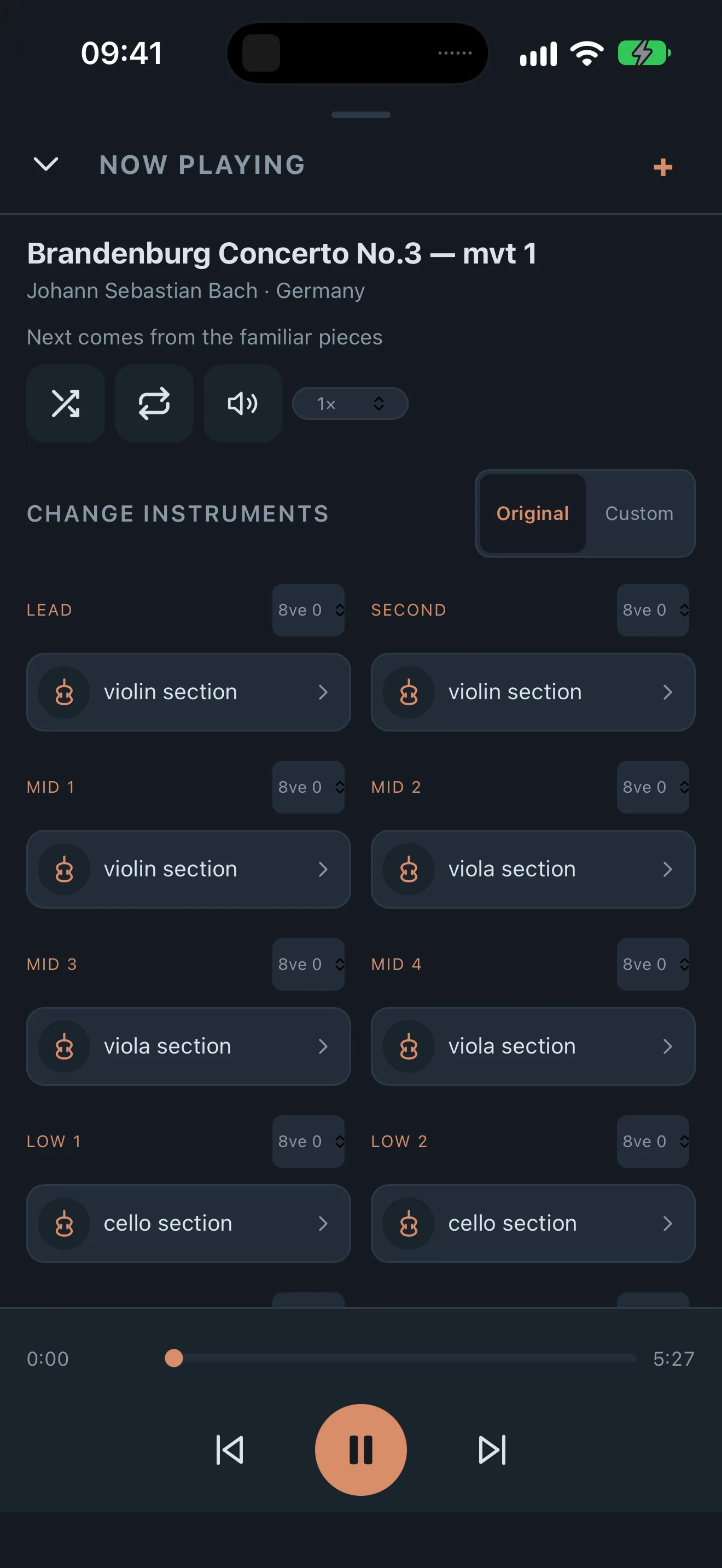
Actual app screen · English
Shuffle
What to look for
Look for the two crossing arrows. On a phone, the icon and outline turn rust-coloured when Shuffle is on. Press again to return to the usual order.
- On a phone
- Open Now Playing by tapping the small player. Shuffle is the first button in the row below “Next comes from …”, just before Repeat.
- On a tablet or computer
- In the player transport, look immediately after Next: Shuffle is the upper button in the small vertical pair, with Repeat below.
Repeat
What to look for
A small 1 appears inside the arrows for one piece. Rust arrows without a 1 repeat the collection.
- On a phone
- The second button in the same row, between Shuffle and the speaker.
- On a tablet or computer
- The lower button in the pair beside Next.
Sound on / off
What to look for
The crossed speaker means all sound is muted. Your instrument choices stay as they were.
- On a phone
- The speaker is the third button, after Repeat and before the speed selector.
- On a tablet or computer
- Find the speaker just after the Shuffle/Repeat pair.
Listening speed
What to look for
It shows percentages such as 75% instead when you select a practice part.
- On a phone
- The small oval marked 1× sits to the right of the speaker. Tap it to choose a speed.
- On a tablet or computer
- Use the speed selector in the player’s top row.
Jump to a moment
What to look for
Tap a position on the line to move to that moment in the piece.
- On a phone
- The timeline sits just above the large Play/Pause button at the bottom of Now Playing.
- On a tablet or computer
- The timeline runs beneath the title and transport row.
Previous, Play, Next
What to look for
The centre button becomes two upright bars while the music plays.
- On a phone
- The three large controls are at the bottom: Previous, the round Play/Pause button, then Next.
- On a tablet or computer
- They are in the main player row near the title.
Play, Pause, Previous & Next
Pause and continue the piece, or move through the current collection or Mix. Previous and Next wrap around the collection.
The timeline
Tap or click a place along the timeline to jump there. Elapsed and total time show your position in the piece.
Shuffle
Switch on to hear the current collection in a different order. Switch off to return to its ordinary sequence.
Repeat
Cycles through off, this piece and this collection. A one-piece collection skips the extra collection choice. With repeat off, playback stops at the end of the collection.
Listening speed
Choose 0.8×, 0.9×, 1×, 1.1×, 1.25×, 1.5×, 1.75× or 2×. It changes while the music plays. Inside a Mix, Save keeps the new speed for that entry.
The speaker control
Mutes all playback without changing your instrument choices. If the player says “Sound is off — press to unmute”, press it again to hear the music.
The speed choices become 50%–100% when you select a practice part. That separate control is explained in Practice tools.
Change the character.
A familiar melody can feel quite different in a new voice. Try one change at a time and give yourself a few phrases to hear what it brings.
Real app walkthrough
See the clicks, step by step.
English · tablet / computer · silent
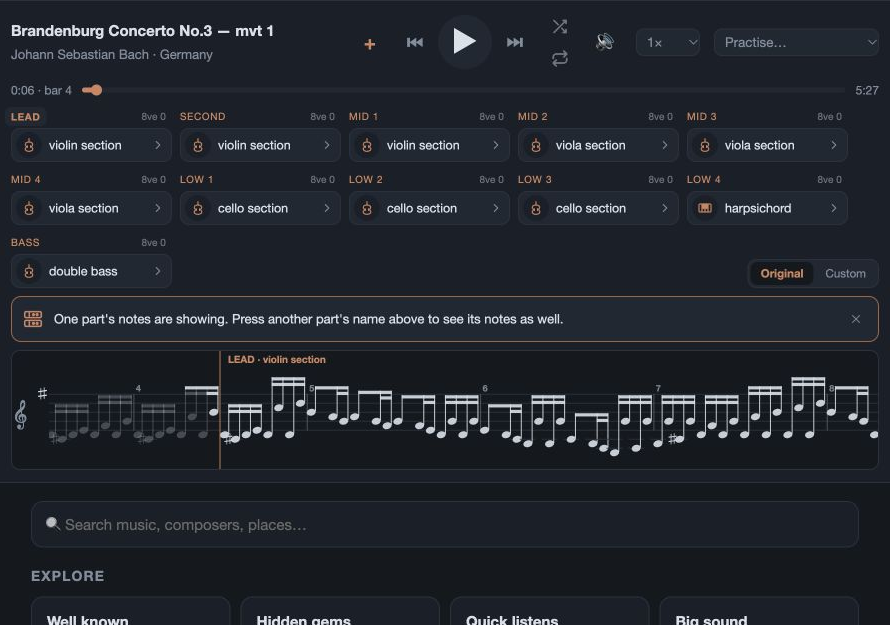
Choose a new instrument
Follow these steps
- Press the instrument tile below the player’s name.
- Choose a different instrument, such as flute.
- The part now uses flute and the arrangement is Custom.
Find it on your screen
Find the controls for each player
Select a control to highlight it.
Actual app screen · English
Instrument name
What to look for
The tile opens the instrument picker. The selected choice has a tick.
- On a phone
- Open Now Playing → Change instruments. Tap the wide tile with the instrument name, not the small part name above it.
- On a tablet or computer
- Under the transport, press the instrument name beneath a part’s name.
Octave
What to look for
- On a phone
- The small 8ve control sits above each instrument tile, beside its part name.
- On a tablet or computer
- It sits beside that part’s instrument controls.
Original / Custom
What to look for
Original clears the applicable custom choices. Save a version in a Mix first if you want to keep it.
- On a phone
- Look opposite Change instruments, above the first pair of instrument tiles.
- On a tablet or computer
- The Original / Custom control sits at the end of the arrangement row, after the part controls.
Add to a Mix
What to look for
When a saved Mix entry has unsaved edits, + gives way to Save. On phone it says Save to your Mix; a wider screen uses the save icon.
- On a phone
- The + is in the top-right corner of Now Playing.
- On a tablet or computer
- The + sits beside the piece title in the player.
- On a phone, open Now Playing → Change instruments. On a tablet or computer, use the part controls below the transport.
- Press the instrument name and choose a tile. The sound changes immediately; the selected tile is ticked. Choosing a sound also unmutes the part.
- Try Octave to move a pitched line down or up by one or two octaves. Mute silences a part; press it again to restore its instrument.
Original & Custom
An edit selects Custom. Original returns to the original scoring and clears the applicable custom choices. Save a version into a Mix first if you want to keep it.
Outside a Mix
Instrument, mute and octave preferences follow musical roles into other pieces. They are not always isolated changes to a single stave. Original clears those live role preferences.
Inside a Mix
Each saved entry keeps its own arrangement. Changes are an audition until you press Save. Moving to another entry loses unsaved changes, including an unsaved Original reset.
Keyboard players
A keyboardist’s grouped staves share instrument, mute and octave controls. The left and right hands remain one player.
A whole palette to explore
Strings, bowed
Violin, violin section, viola, viola section, fiddle, cello, cello section, double bass.
Strings, plucked
Harp, nylon guitar, acoustic guitar, banjo, dulcimer, sitar, koto, shamisen.
Woodwinds
Piccolo, flute, recorder, oboe, clarinet, bassoon, saxophone, pan flute, shakuhachi, ocarina, shehnai.
Brass
Trumpet, trombone, French horn, tuba.
Keys & reeds
Piano, harpsichord, organ, harmonium, accordion, harmonica, bagpipes. Bagpipes have a nine-note range.
Bells & mallets
Celesta, glockenspiel, xylophone, marimba, vibraphone, kalimba, balafon, tubular bells, timpani.
Electric
Clean electric guitar, driven rock guitar, concert rock guitar, electric bass and concert electric bass.
Untuned drums and percussion have a separate bank of eleven sounds, explained next. Their octave control does not turn drum strokes into higher or lower pitched notes.
A different kind of note bar.
Untuned percussion has its own instrument choices and its own visual language. The symbol tells you what is struck; the line helps you follow when it is struck.
Real app walkthrough
See the clicks, step by step.
English · tablet / computer · silent
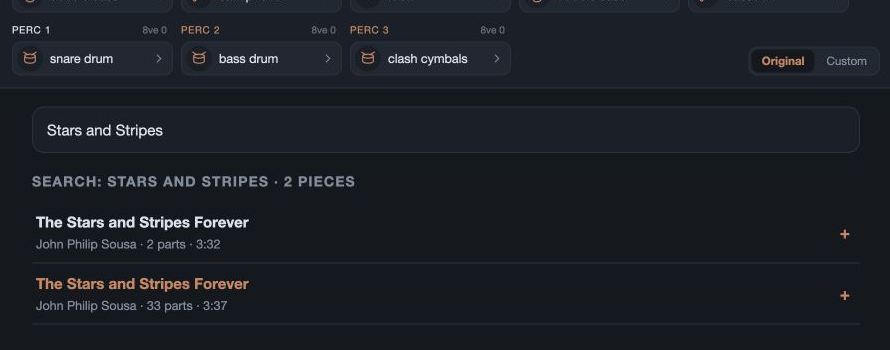
Follow one drum or a shared kit
Follow these steps
- Press Perc 1 to follow the snare drum.
- The snare has its own one-line bar. Add Perc 2.
- Both instruments now share a kit bar with separate symbols.
One percussion instrument
A single-line staff replaces the pitched staff. Small instrument pictograms show the hits, with rhythm details where the score provides them. Rolls can show an extender and tremolo strokes.
Several percussion instruments
A shared kit bar gives each distinct instrument its own line and a pinned pictogram legend. Beat ticks and bar lines help you follow simultaneous rhythms.
On your device
A sideways phone groups untuned percussion automatically. On tablet or computer, select two or more percussion part names to combine their bars; follow one for a single-line view.
A separate instrument bank
Snare drum, bass drum, clash cymbals, suspended cymbal, triangle, tambourine, tam-tam (gong), castanets, claves, maracas and hand claps.
Pitched percussion is different
Timpani and mallet instruments such as marimba and xylophone have pitches. They use the melodic instrument choices and the pitched staff.
Keep one drum change independent
First add the piece to a Mix and play that saved entry. Then change its snare to tambourine and Save. Outside a Mix, untuned parts share a live percussion preference, so a change can affect several drum parts.
An untuned part changes to other untuned percussion. Its picker does not offer piano or violin, and the melodic picker does not offer these untuned drums. The animated drawings are simplified teaching illustrations; the real app uses instrument pictograms and richer rhythm detail.
See what you’re hearing.
Following a single line is a lovely way to get closer to a piece. You do not need Practice tools just to watch the music.
Real app walkthrough
See the clicks, step by step.
English · tablet / computer · silent
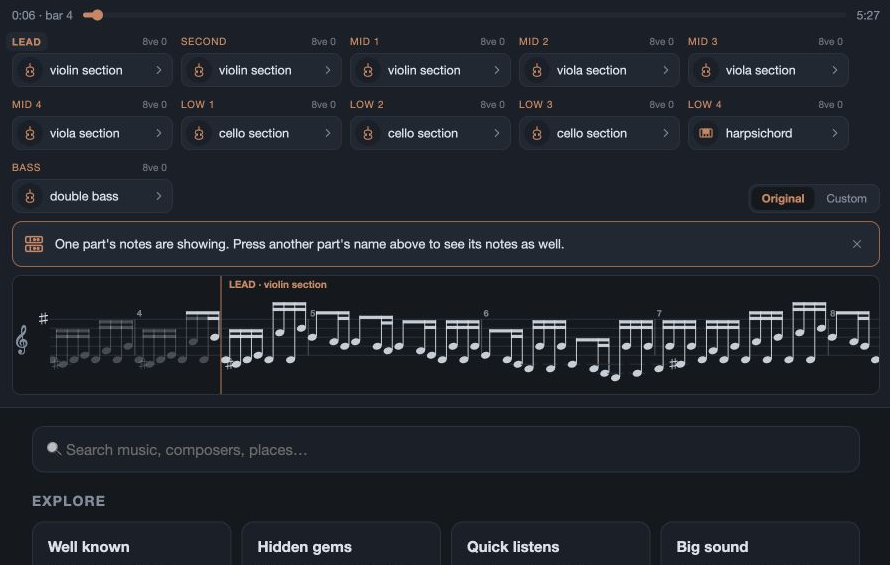
Show and hide players’ music bars
Follow these steps
- Press another player’s name to follow that part too.
- Both music bars are open. Press the first name to hide that bar.
- Only the second player’s bar remains.
Phone: turn sideways
Play a piece and rotate the phone. Notes scroll towards a fixed line and sound as they reach it. Swipe left or right for another player.
Phone: tap for controls
Tap the stage to show or hide playback and timeline controls. They fade away after a short while. Turn upright to browse or change instruments.
Tablet & computer
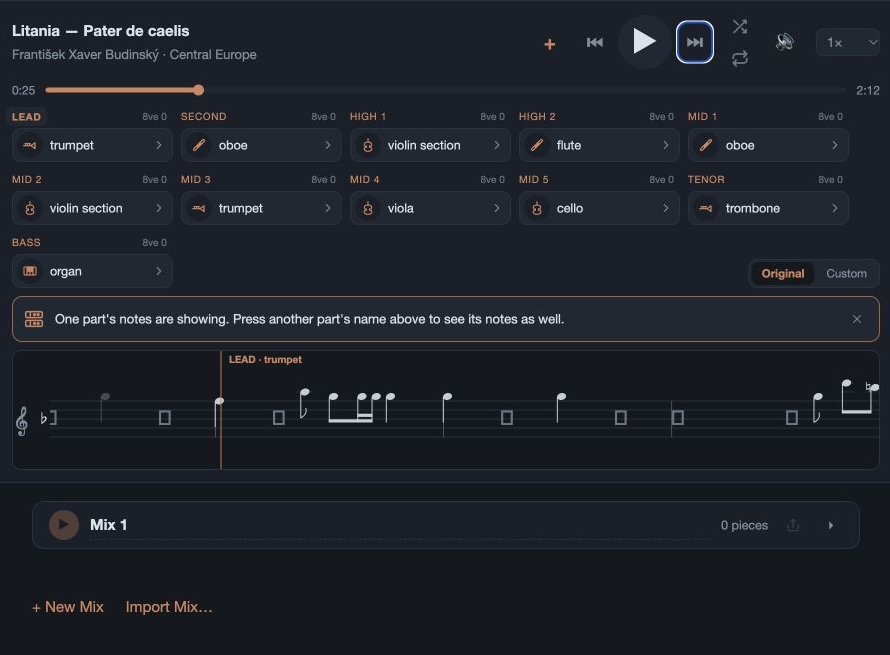
Select a player’s part name above its instrument button to show or hide that music bar. Follow several parts together to see how they answer each other.
Read what the score supplies
Where available, Concerting draws engraved notation. Other pieces use a proportional staff showing pitch and duration. Keyboard staves appear together; muted parts dim.
If your phone does not turn into the music stage, check its rotation lock. A part that has no notes in this movement is marked as silent rather than given invented notes.
Keep the combinations you love.
A Mix keeps a sequence of pieces together with their instruments, octaves, mutes and listening speeds. Think of each entry as its own version of the piece.
Real app walkthrough
See the clicks, step by step.
English · tablet / computer · silent
Create a Mix
Follow these steps
- Press + beside the playing piece.
- Choose New Mix to start a named collection.
- Choose New Mix.
- Give your Mix a name, then press Create.
- The new Mix holds this piece with its current instruments and speed.
Find it on your screen
A Mix, with its controls in view
Select a control to highlight it.
Actual app screen · English
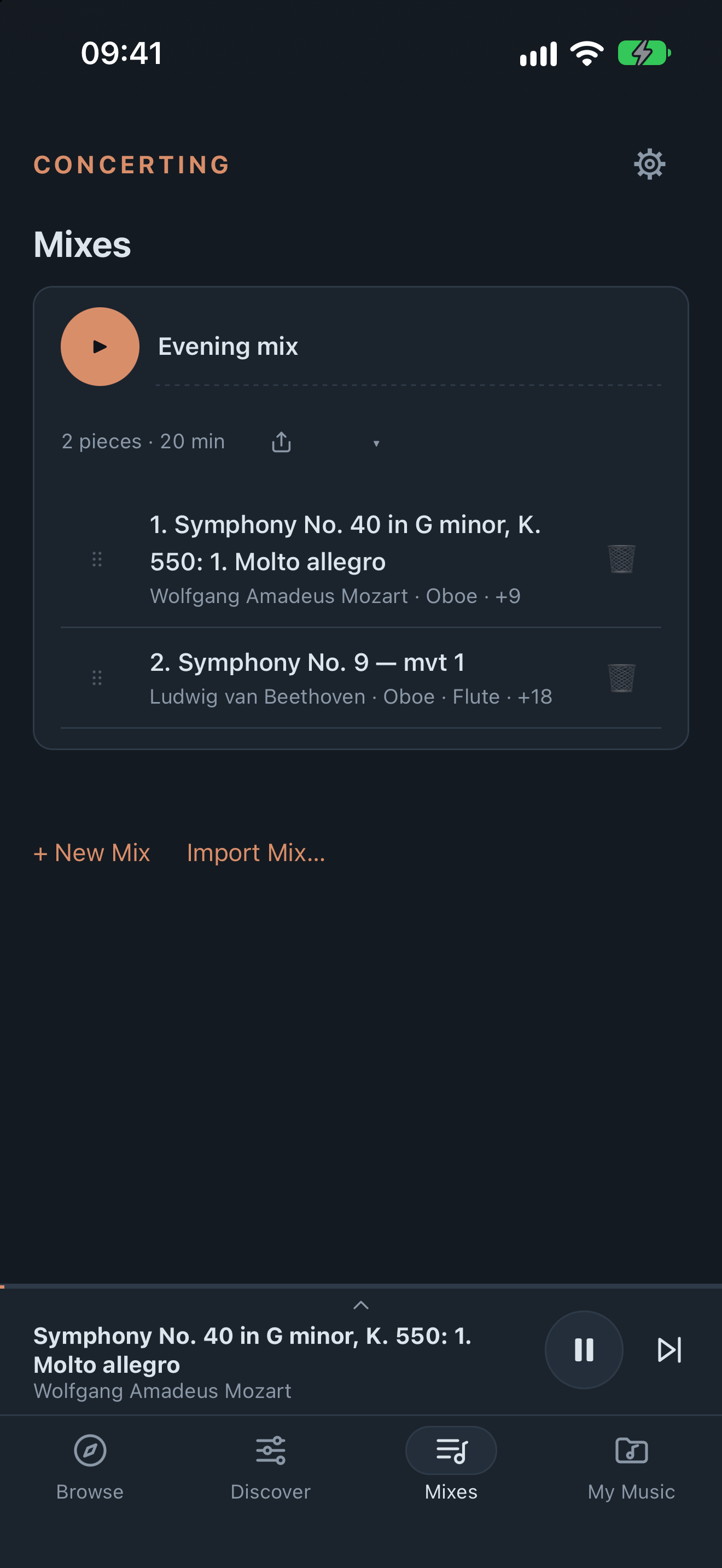
Mixes
What to look for
- On a phone
- Choose the music-and-lines symbol marked Mixes in the bottom navigation.
- On a tablet or computer
- Choose Mixes along the top.
Play this Mix
What to look for
- On a phone
- The round Play button is beside the Mix name.
- On a tablet or computer
- It is at the start of the Mix’s heading.
Share / export
What to look for
- On a phone
- Look for the arrow rising out of a tray, beside the piece count and running time.
- On a tablet or computer
- Use the export/share control in the Mix heading.
Reorder entries
What to look for
- On a phone
- Press and drag the small dotted grip to the left of a piece. Expand the Mix with its chevron if the entries are hidden.
- On a tablet or computer
- Use the same drag grip at the left of each entry.
New Mix / Import
What to look for
- On a phone
- Scroll below your Mix cards for + New Mix and Import Mix….
- On a tablet or computer
- Find the same controls below the Mix list.
- Press + beside a piece or in the player. Choose an existing Mix, or + New Mix, give it a name and press Create.
- Open Mixes and play the saved entry before changing its arrangement.
- After changing its instruments, mute, octave or listening speed, press Save to [Mix name] on phone, or the save icon on a wider screen.
More than one version
You can add the same piece more than once, with different arrangements. A tick means a matching version is already there; it does not prevent you adding another.
Organise your listening
Expand a Mix with its chevron. Rename it in the name field, drag an entry by its reorder grip and remove entries you no longer want. Names can be up to 24 characters.
Start where you like
The Mix’s play button starts from the top. Select a row to begin at that piece. The heading shows the piece count and running time before speed adjustments.
Keep or delete
There is no everyday limit on the number of Mixes. Deleting a whole Mix asks for confirmation; at least one Mix remains.
Do save before moving to another entry: unsaved changes are lost. Practice tempo and practice part level are separate overlays and do not replace the listening arrangement saved in a Mix.
Pass a discovery along.
Share an arrangement with someone, then let them make it their own. A shared Mix is a copy of your choices, with no continuing connection between the two versions.
Real app walkthrough
See the clicks, step by step.
English · tablet / computer · silent
Export a Mix file
Follow these steps
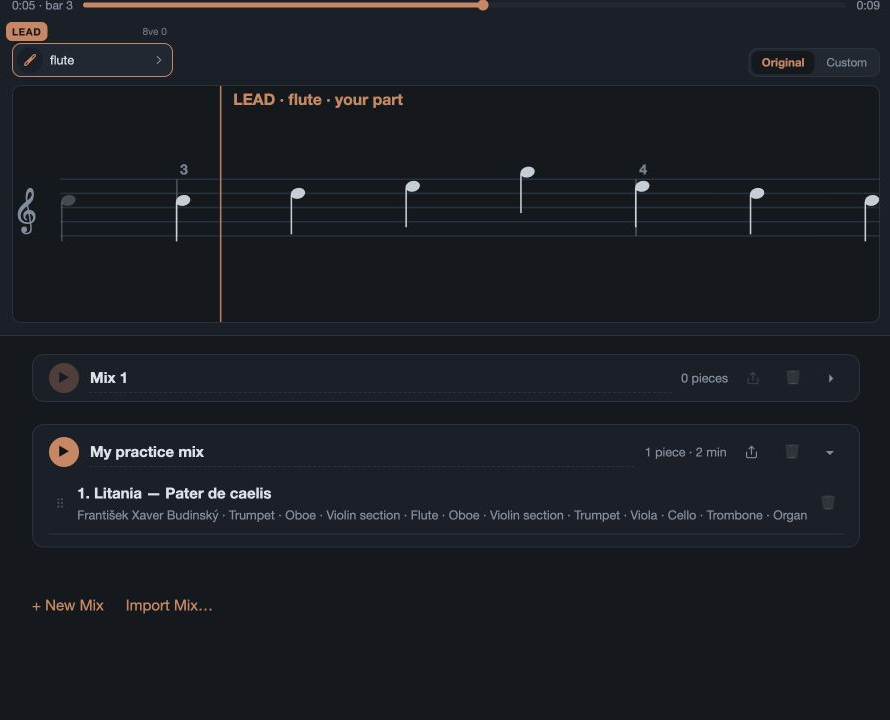
- Use the share arrow to export a copy of this Mix.
- The confirmation names the exported .ccmix file. Your Mix stays on this device.
- In Mixes, use the share or export control in the Mix heading. A phone opens its sharing options; other systems can download a .ccmix file.
- The recipient opens Mixes → Import Mix… and chooses that file, or opens it directly where the phone supports this.
- Read the import summary. A new Mix is created with its own name; an existing Mix is not overwritten.
What the file contains
The order of library pieces and their arrangement choices. It is not an audio recording, and contains no recordings or scores. No Concerting account is needed.
Different editions or versions
Missing pieces or changed arrangements are reported. An unavailable instrument can fall back to the original. A choice locked by edition is kept for a later unlock.
My Music stays local
Imported personal music is not included. If a Mix also has library pieces, Concerting asks before sharing those; a Mix made entirely of My Music cannot be shared.
Keep your own copy
A friend can change their imported Mix without altering yours. Export is also a useful way to keep a copy of a favourite library arrangement.
A newer, incompatible Mix format needs an app update. The file importer has safety limits; these are not everyday limits on the number of Mixes you can create.
Make the view feel right.
Open Settings → Display and choose what is easiest on your eyes. These everyday display controls are available without the Practice tools.
Real app walkthrough
See the clicks, step by step.
English · tablet / computer · silent
Open and close Settings
Follow these steps
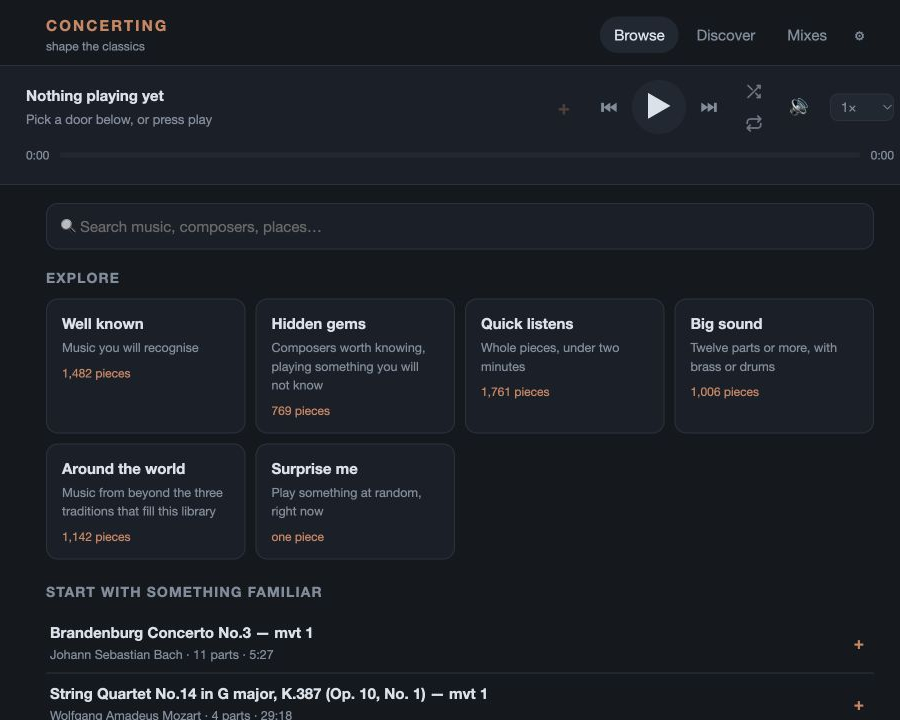
- Find the Settings cog after the navigation tabs.
- Settings opens with Display at the top.
- Close Settings to return to the music.
Find it on your screen
Recognise the Display settings
Select a control to highlight it.
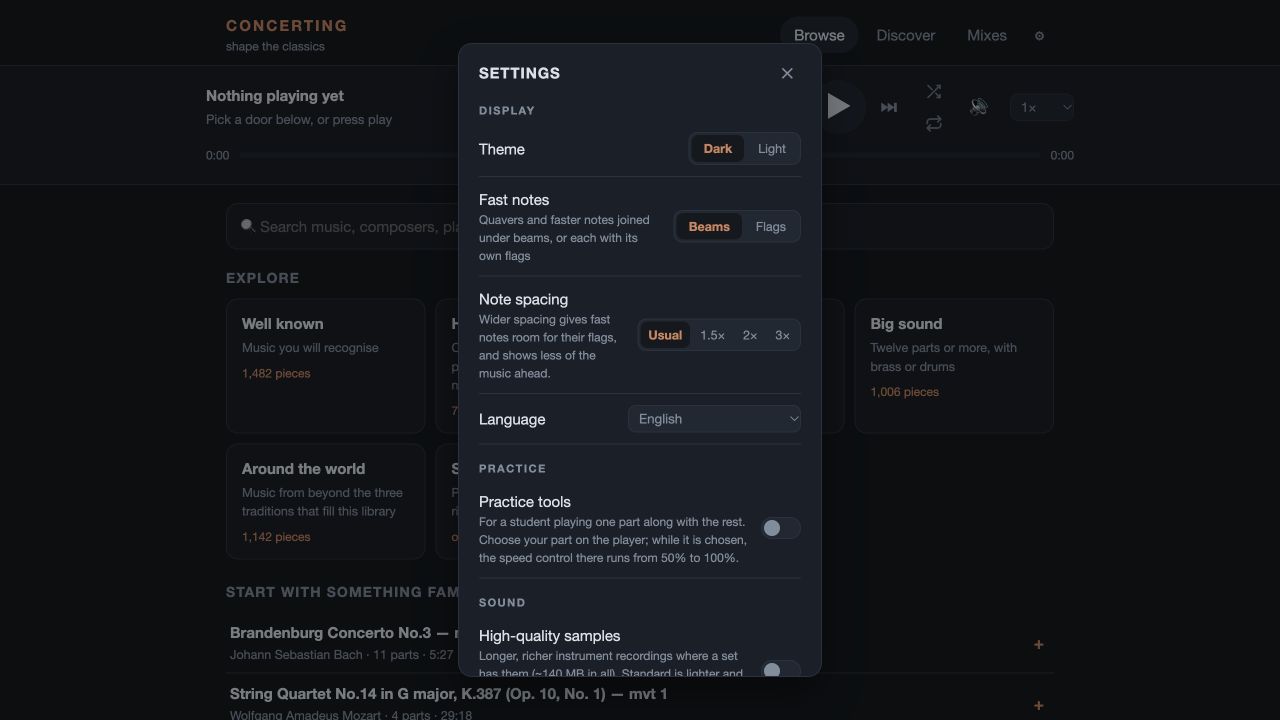
Actual app screen · English
Theme
What to look for
- On a phone
- Close Now Playing, open the cog, then find Theme under Display.
- On a tablet or computer
- Open the top-right cog. Theme is the first Display row.
Beams / Flags
What to look for
- On a phone
- In Settings → Display, find Fast notes beneath Theme.
- On a tablet or computer
- It is the second Display row.
Note spacing
What to look for
- On a phone
- Under Fast notes, use the four short spacing choices.
- On a tablet or computer
- Find Note spacing in the Display section.
Language
What to look for
- On a phone
- Use the Language drop-down below Note spacing.
- On a tablet or computer
- The same drop-down sits at the end of the Display group.
Theme: Dark or Light
Changes both the interface and music bars immediately. Choose the background that is clearer in your room.
Fast notes: Beams or Flags
Beams join faster notes into groups. Flags show them individually. Beams is the starting choice.
Note spacing
Choose Usual, 1.5×, 2× or 3×. Wider spacing gives busy passages more room, while showing less of the music ahead.
Language
Choose your language by its own name. The choice is remembered and the app reloads. Music titles remain as the library holds them.
Keep screen awake
On a phone, keeps the screen from dimming while you follow the music, when the device or browser permits it. It starts off.
Taller music bars is a separate Practice tools option for tablet and computer. There is no manual layout selector; the app chooses the appropriate view for your device and orientation.
The finishing touches.
The remaining Settings sections help you choose sound quality, manage your purchase and find your way back to the introduction.
Real app walkthrough
See the clicks, step by step.
English · tablet / computer · silent
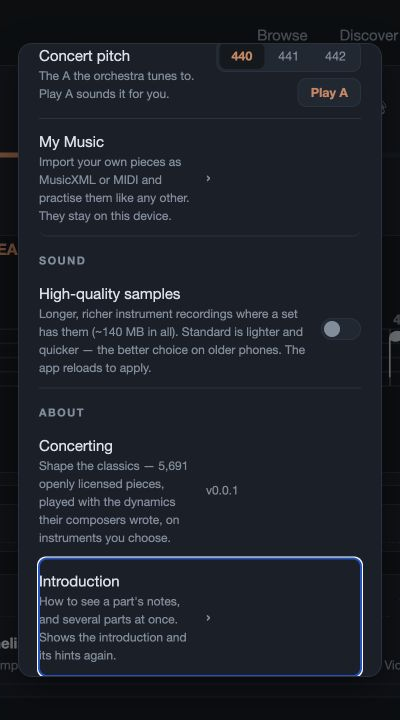
Choose the recording quality
Follow these steps
- Switch to high quality for richer recordings where available.
- After the app reloads, the switch is on: high quality is selected.
Sound → High-quality samples
The Full release includes longer, richer recordings where available. Switch on for the higher-quality pack, about 140 MB in total; the app reloads. The standard pack is lighter for older phones.
Larger ensembles
Some very large scores need High-quality samples enabled to play their full arrangement. Check a piece’s notice if it asks for this.
Purchases → Full release
Where an upgrade is available, the connected phone store supplies the local offer and price. Practice tools is a separate addition on phone editions.
Restore purchases
If your connected store account already owns an unlock, use Restore purchases where it is shown. This depends on the store connection; Steam manages its own purchases.
About → Concerting & Introduction
Find your installed version and show the introduction and hints again. Helpful if you skipped the first tour or need a reminder of the gestures.
Credits & attributions / Privacy
Read about the scores, instrument recordings and their licences, and how the app stores your data. Settings and Mixes are local; sharing a Mix is a deliberate action.
The main player does not have a separate per-part volume slider, EQ or boost control. Use instrument choice, mute and octave for arrangements; My part plays in Practice tools adds the practice listening levels.
A few details for your device.
The music is the same, but some controls belong to a particular device. Here are the differences worth knowing.
Android listening
The installed phone app supports background listening and media play/pause, next and previous controls through its notification, lock screen or headset. There is no seek bar there; use the app timeline.
iPhone listening
The current iPhone build supports background listening with Pause/stop on its lock-screen card. After stopping, return to Concerting to resume.
Android Back
Closes the current layer first. From the sideways stage it returns upright; from another main tab it returns to Browse. From Browse, Back first clears a search or closes a collection; from the Browse home screen it backgrounds the app.
Steam desktop: music windows
The small note button beside a player’s name opens a separate movable, resizable music window. Press again, or use its back control, to close it. Several percussion players can share a kit window.
Steam desktop: characters
Supported instruments can open a desktop character. The picker indicates where one is available; not every instrument has a character yet.
Steam practice ownership
The planned Steam desktop edition includes Practice tools. Mobile editions offer those tools as an addition to the Full release.
Desktop features are described for the desktop build; they are not phone controls. The separate commercial audio-export tools are outside the Full release and Practice tools covered here.
Continue exploring